 Datemend
For Google Photos Takeout · Windows 10 and 11
Your photos, with their real dates back.
Takeout gives you your photos, but leaves the date taken, the place and the caption in separate .json files. Datemend writes them back into every photo and video, then copies them into tidy year and month folders. On your PC, nothing uploaded.
27-second demo. It plays from YouTube when you press play.
Three steps. No unzipping, no command line.
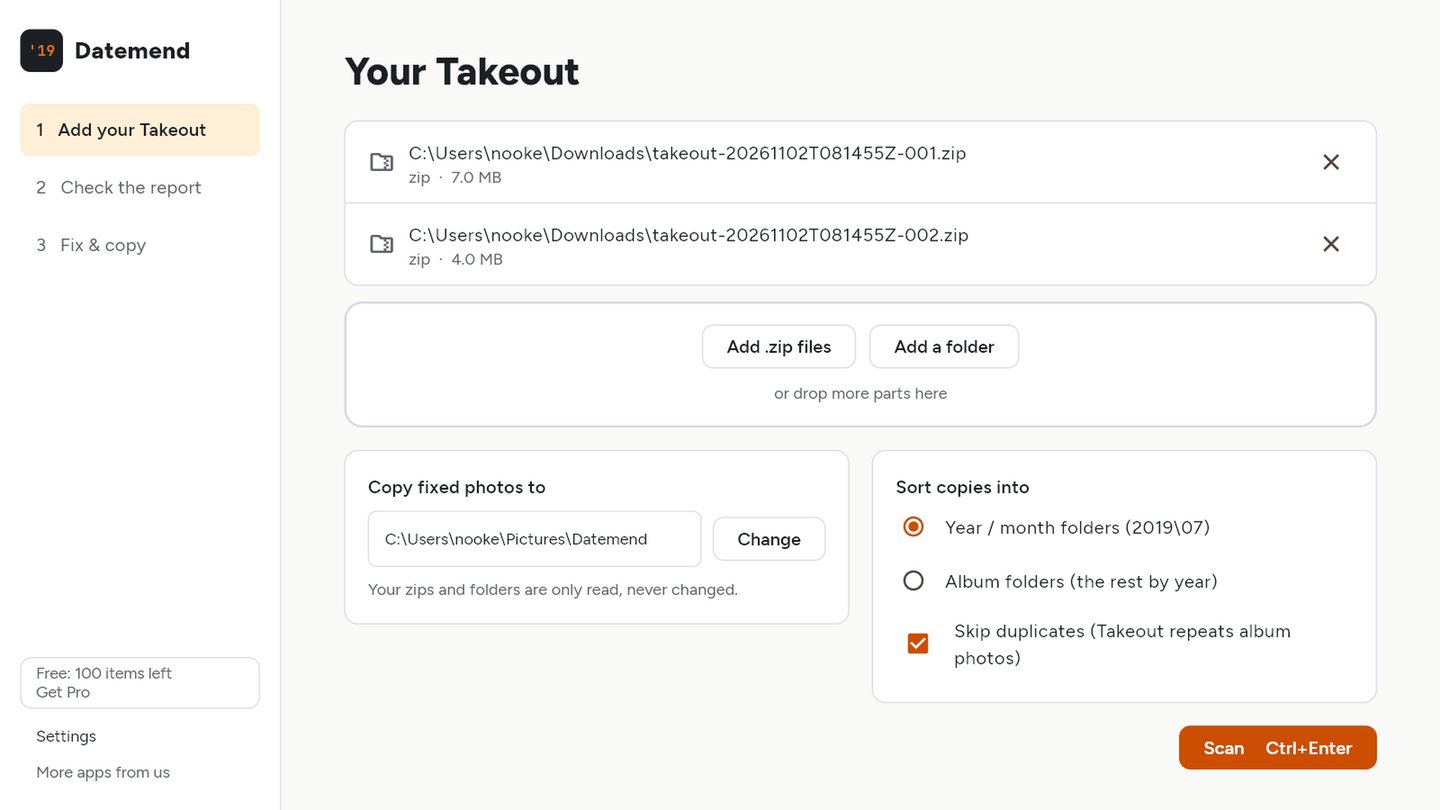
Add every Takeout part
Drop in takeout-001.zip, takeout-002.zip and the rest, or the folder you already unzipped them to. Datemend reads the zips where they are. A photo and its JSON file can sit in different parts; it still finds them.
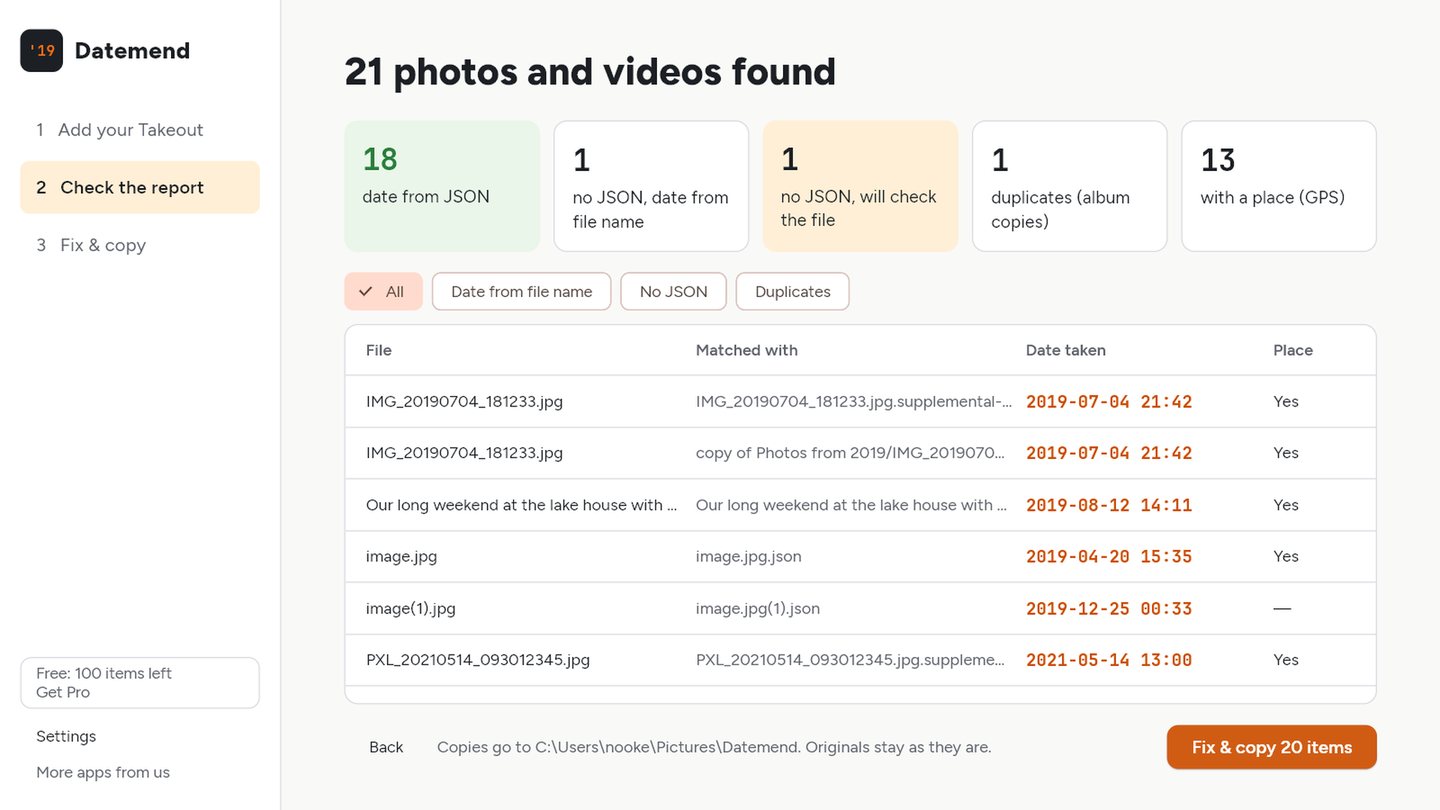
Check the report
See how many photos matched their JSON file, which get their date from the file name (like IMG_20190704_181233.jpg), which have no date anywhere, and how many are duplicate album copies, before anything is changed.
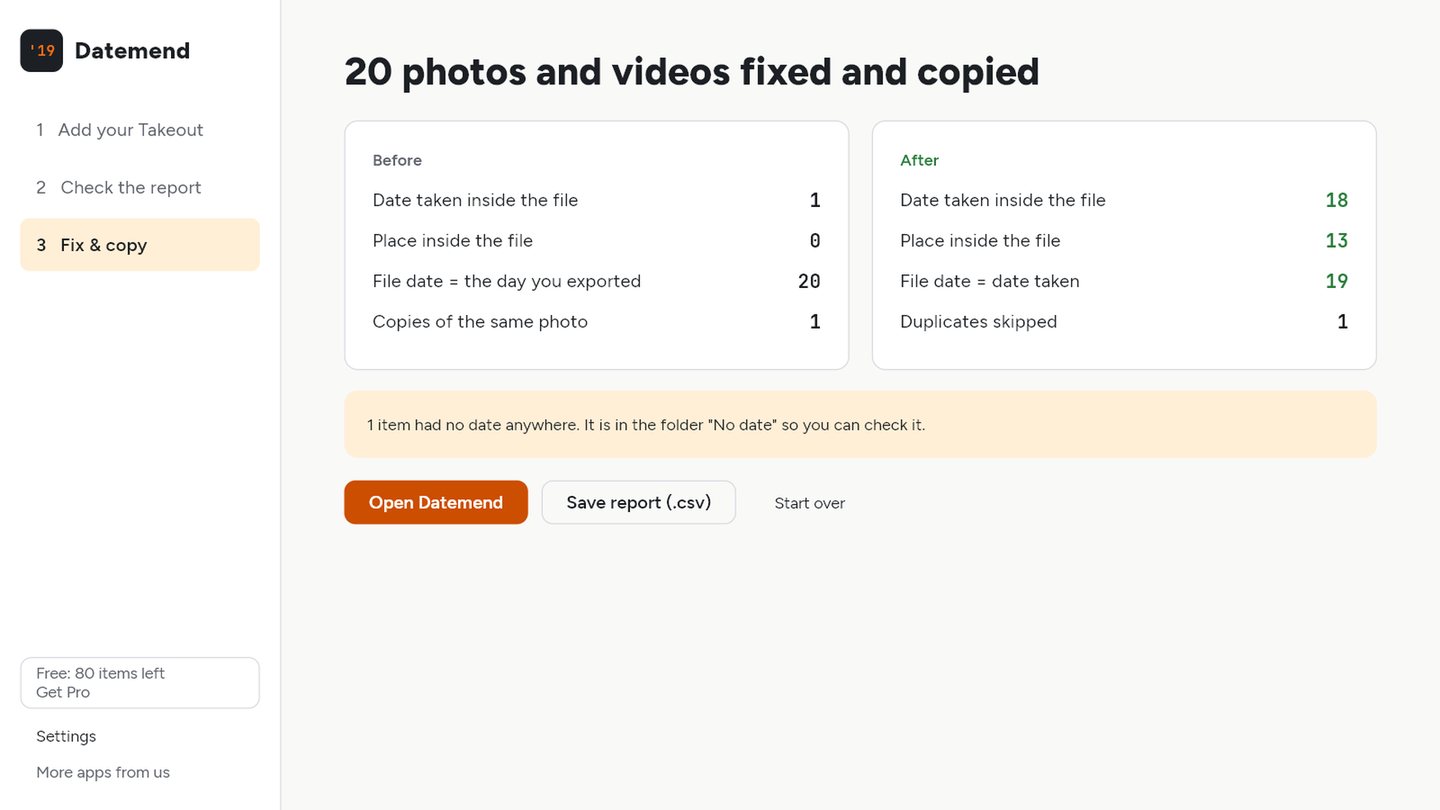
Fix & copy
Datemend writes the date taken, GPS location and caption into each photo and video, sets the file's created and modified dates, and copies everything into year/month or album folders. Your zips and originals are never changed.
Built for Takeout's messy file names
Every kind of sidecar
.json and .supplemental-metadata.json, even when Google cut the name off at 46 to 51 characters.
Copies and edits
image(1).jpg finds image.jpg(1).json. "-edited", "-bearbeitet" and other edited copies get the original's date.
Live and motion photos
The video half of an iPhone Live Photo or a Pixel motion photo (.MP) gets the date of its photo.
No JSON at all
The date comes from the photo itself or from names like Screenshot_2020-03-15-21-07-44.png. The rest go to a "No date" folder.
Camera dates kept
When the camera already wrote a date into the photo, Datemend keeps it and only fills in what's missing.
Every common format
JPEG, HEIC, PNG, WebP, GIF, MP4 and MOV, written with the trusted open-source ExifTool, built in.
Pay once. Keep it.
Free
Scan your whole Takeout and see the full report. Fix and copy 100 photos and videos.
Get it from MicrosoftNo subscription. Your licence key arrives by email; enter it in Datemend. Moving to a new PC? "Free this seat" moves your licence. Payments are handled by Lemon Squeezy.
Questions
Why are my Google Takeout photos showing the wrong date?
Takeout stores each photo's date taken, location and caption in a separate .json file next to it. Many photos (screenshots, downloads, edited copies, shared photos) have no date inside the image itself, so once copied they show the day you downloaded them. Datemend puts the JSON's date back into the photo.
Do I need to unzip my Takeout first?
No. Add the .zip parts directly. Datemend reads them in place and only writes the fixed copies to the folder you choose.
Are my photos uploaded anywhere?
No. Everything happens on your PC. The only internet use is the licence check, which sends your licence key and your PC's name to Lemon Squeezy.
Does it change my original files?
No. Your zips and folders are only read. Datemend writes fixed copies into a new folder.
Can I import the result into OneDrive, iCloud, Immich or a NAS?
Yes. The dates and GPS are written into standard EXIF and QuickTime tags that those apps read, and the file dates match too.
Is this made by Google?
No. Datemend is an independent app. Google Photos is a trademark of Google LLC.